
 Deutsch
 English
 Türkçe
On this page you can create credit notes by clicking the 'New Credit Note' button and edit your existing credit notes.
At the top of the page, a summary bar gives you a quick overview of your credit activity: Credit notes this month, Refunds this month, VAT this month, and Open refunds. Clicking the Open refunds card filters the list down to the credit notes that still have an open or partially paid payment status.

If you want to create a "Credit Note" for your sales on the invoice page, hover your mouse over the three dots on the right and click 'Create credit note' in the menu that opens. You can then make the desired changes in the window that opens.
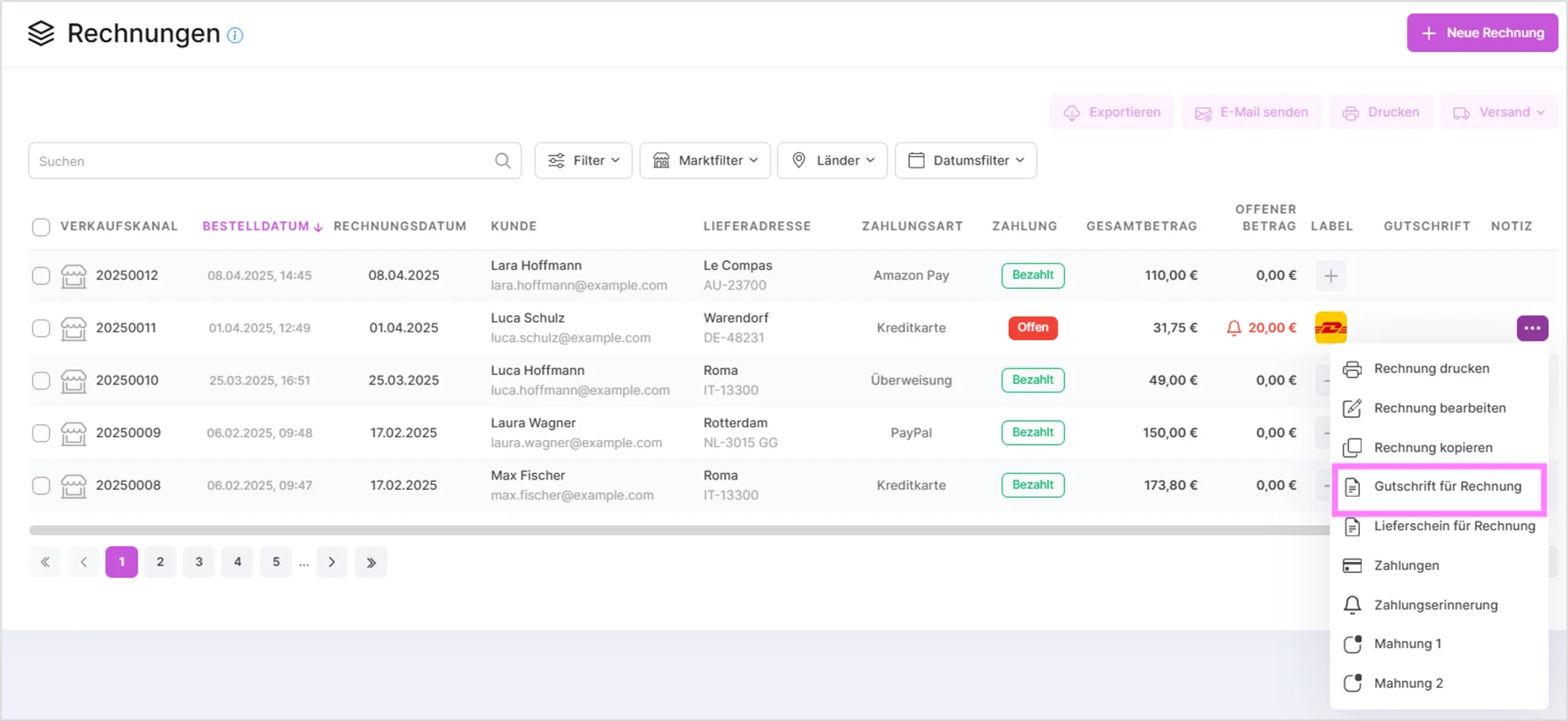
In that window, each line item has its own 'Return' / 'Don't return' toggle, so you decide item by item what belongs in the credit note. Creating a credit note does not automatically credit the whole invoice. SaleVali also protects you from refunding the same item twice: once a position has already been credited, its toggle is disabled so it can't be added to another credit note.
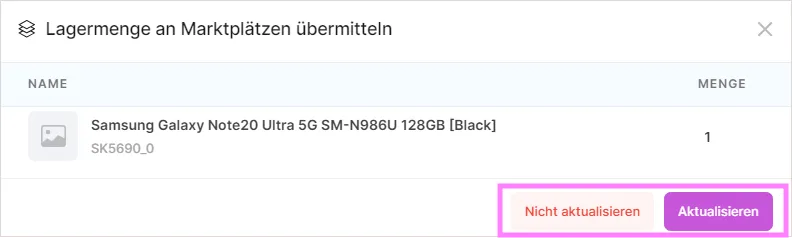
If you created a credit note because of a returned product, you can update your stock levels in the menu below. If any of the returned items are digital products whose license key has already been sent to the customer, SaleVali shows a warning before you continue, so you can decide whether the key needs to be revoked or replaced.
Your refund balance is tracked independently of the related invoice's payment status, so a credit note is calculated correctly whether the invoice is still open, partially paid, or already paid in full.
When you hover your mouse over the relevant credit note, you'll see a three-dot icon on the right. Clicking it opens a dropdown menu where you can perform operations on that credit note.
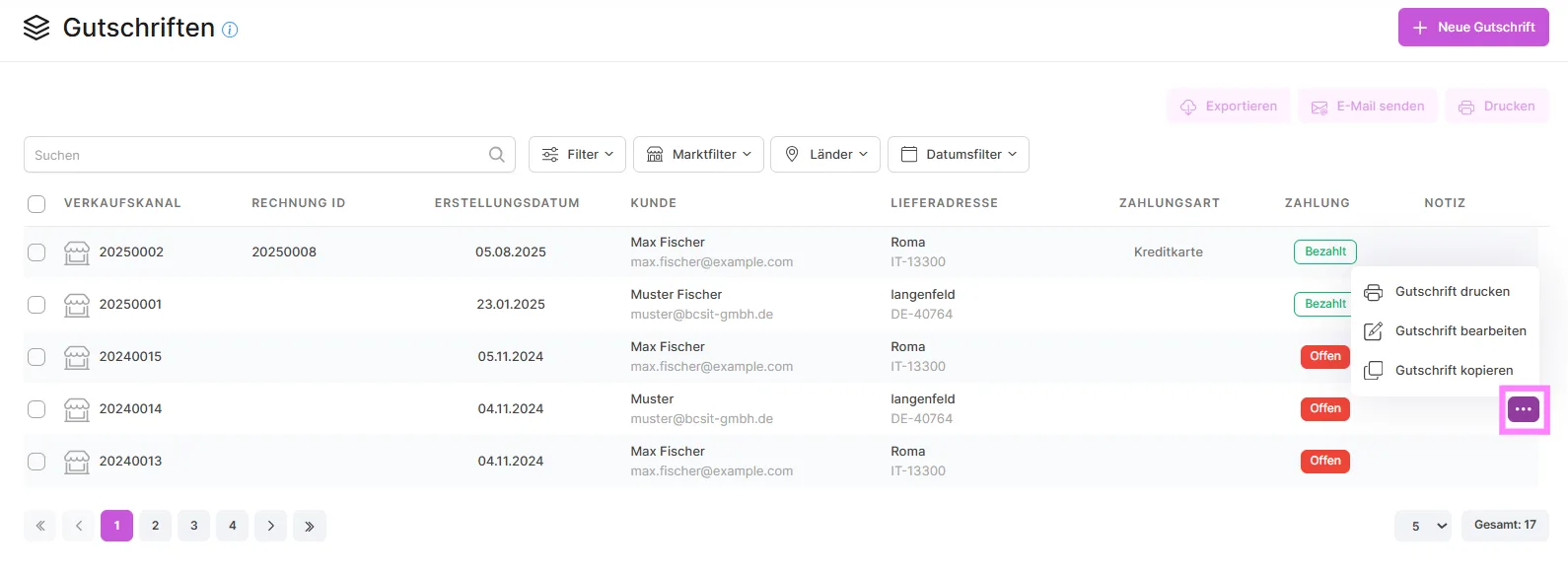
- By selecting one or more customers from the list, you can send them information about the credit notes using the 'Send email' function.
- With the 'Print' function you can print the selected credit note.
- You can search by ID and name using the search bar below.
- You can also filter as needed in the filter area next to the search bar.
- The payment status filter group lets you narrow the list down to open, partially paid, paid, or overpaid credit notes.

With the "New Credit Note" function you can create new credit notes for your customers. The steps in this area are the same as those in the section for creating new orders.
Video Tutorials
Creating Credit Notes
Was this article helpful?
Thanks for your feedback!