
 Deutsch
 English
 Türkçe
On this page you'll see your orders in a table. For orders to appear, you need at least one order from the marketplace or one you've created yourself. The table shows the name, quantity, tax, net sales price, and gross sales price of your order. You can export your list as a CSV file by clicking the "Export to CSV" button on the right. You can search by product name using the search field below.
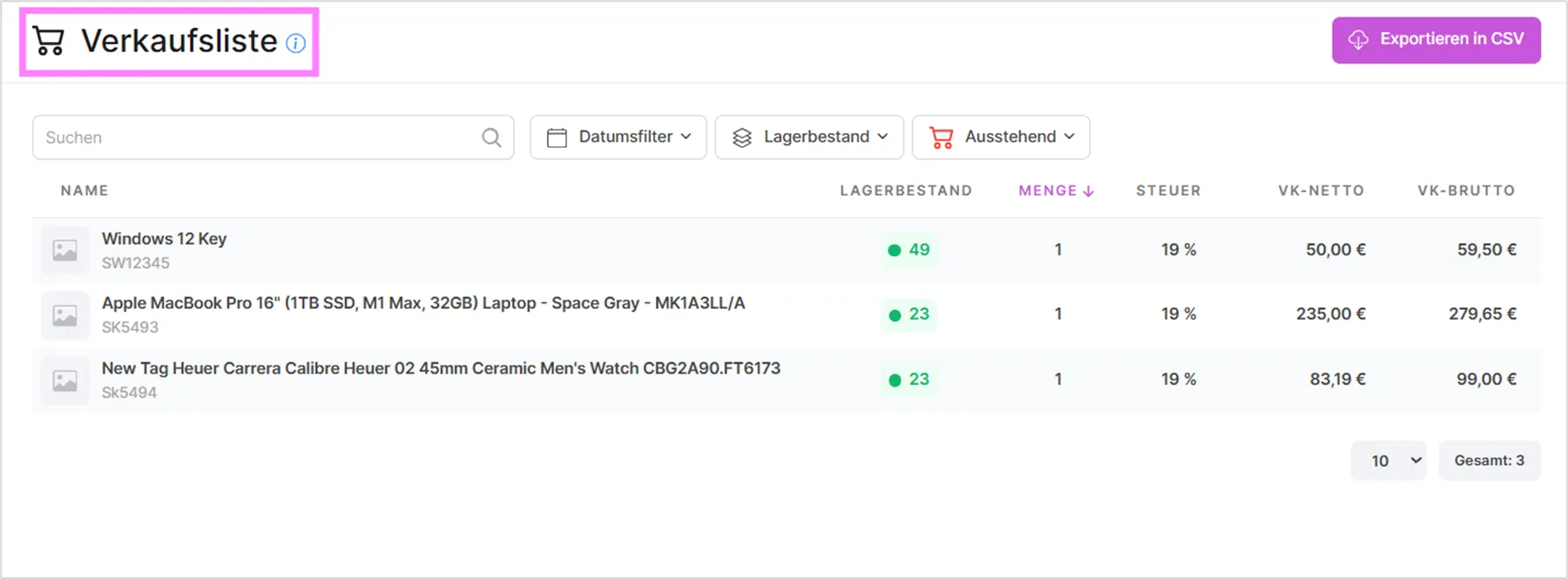
Filter Functions in the Sales List
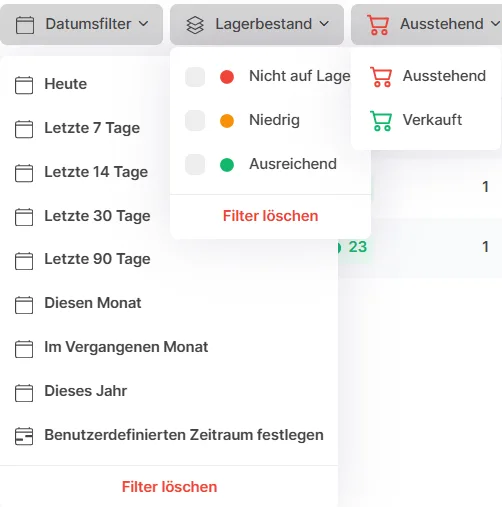
The filter functions in the sales list enable targeted, efficient searching within your sales data. The following filters are available:
Search: Use the search field to look for a specific product name or item number. You'll get matching results as you type.
Date filter: The date filter lets you narrow down sales data by specific time periods, e.g. by day, week, month, or a custom date range.
Stock level: This filter lets you sort or filter items by their current stock level. Choose from three precise states: Out of stock, Low, or Sufficient, to quickly spot items that need attention or reordering.
Status: This filter shows you products with a specific sales status: Pending for open orders or Sold for completed ones. That makes it easy to keep track of what's still open.
Marketplace filter: Narrow the list down to one or more of your connected marketplaces at once. This is a multi-select filter, so you can, for example, combine several channels to see their combined sales, or filter out orders that don't come from any marketplace at all.
Profitability filter: Focus on the items that matter most to your bottom line by choosing Profitable only, Losses only, or Missing cost price. The last option flags items that don't yet have a purchase price stored, so their profit can't be calculated.
Summary Overview
At the top of the sales list, a summary bar gives you an at-a-glance overview of the currently filtered period: units sold, total revenue, total profit, and average margin. Two more cards, loss-making SKUs and items with no purchase price, are clickable: click either one to instantly filter the table down to just those products, and click again to remove the filter.
Profit by Marketplace
Below the summary bar, an expandable "Profit by Marketplace" chart breaks total profit down by sales channel, so you can see at a glance which marketplaces are driving your profit and which ones might be costing you money.
Additional Columns
The table also includes columns for stock level, days of stock remaining, purchase price, profit, and margin for each item, giving you a complete picture of profitability directly in the list, so there's no need to open each product individually.
Video Tutorials
Viewing Sales Reports
Was this article helpful?
Thanks for your feedback!