
 Deutsch
 English
 Türkçe
On this page you can create delivery notes by clicking the 'New Delivery Note' button and edit your existing delivery notes.
When you create or edit a delivery note, each line item has its own 'Remove from list' / 'Add to list' toggle, letting you leave items out of the delivery note without deleting them from the underlying order.
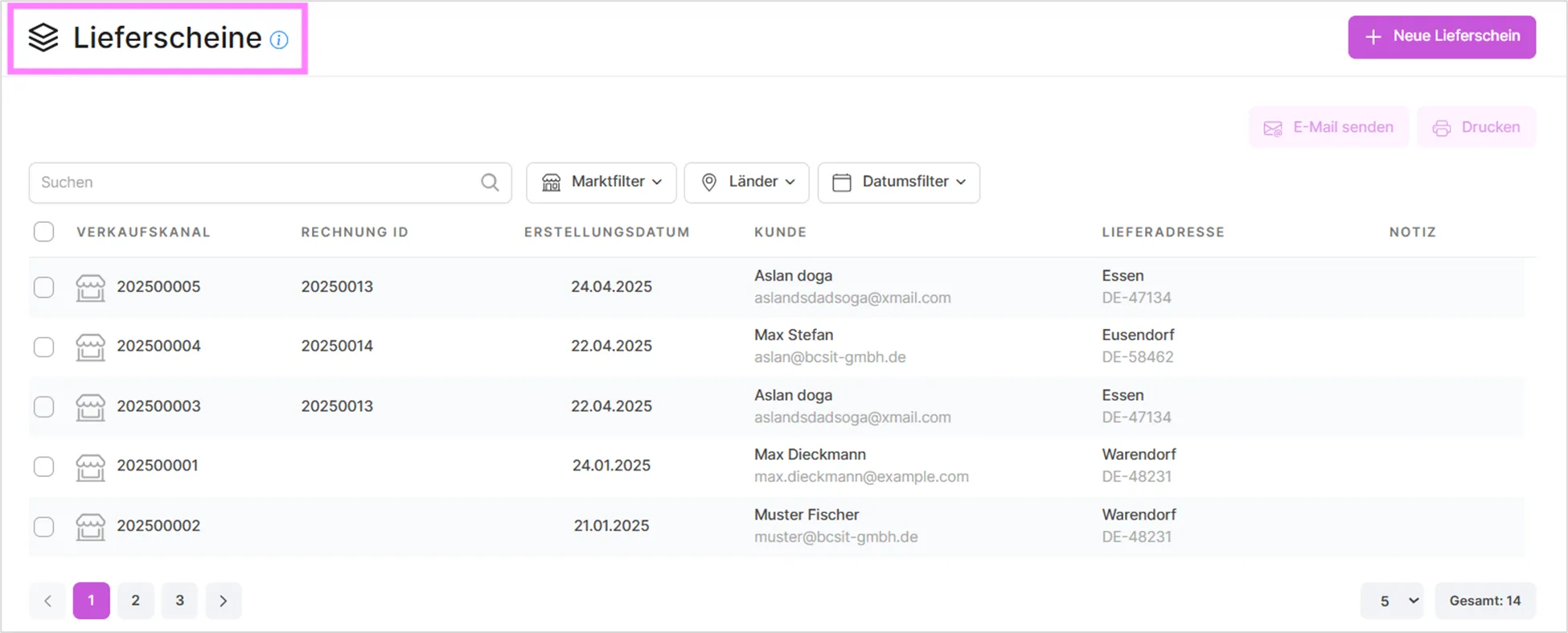
You can filter the list by market, country, and shipping carrier using the filter area above it.
When you hover your mouse over the relevant delivery note, you'll see a three-dot icon on the right. Clicking it opens a dropdown menu where you can perform operations for that delivery note.
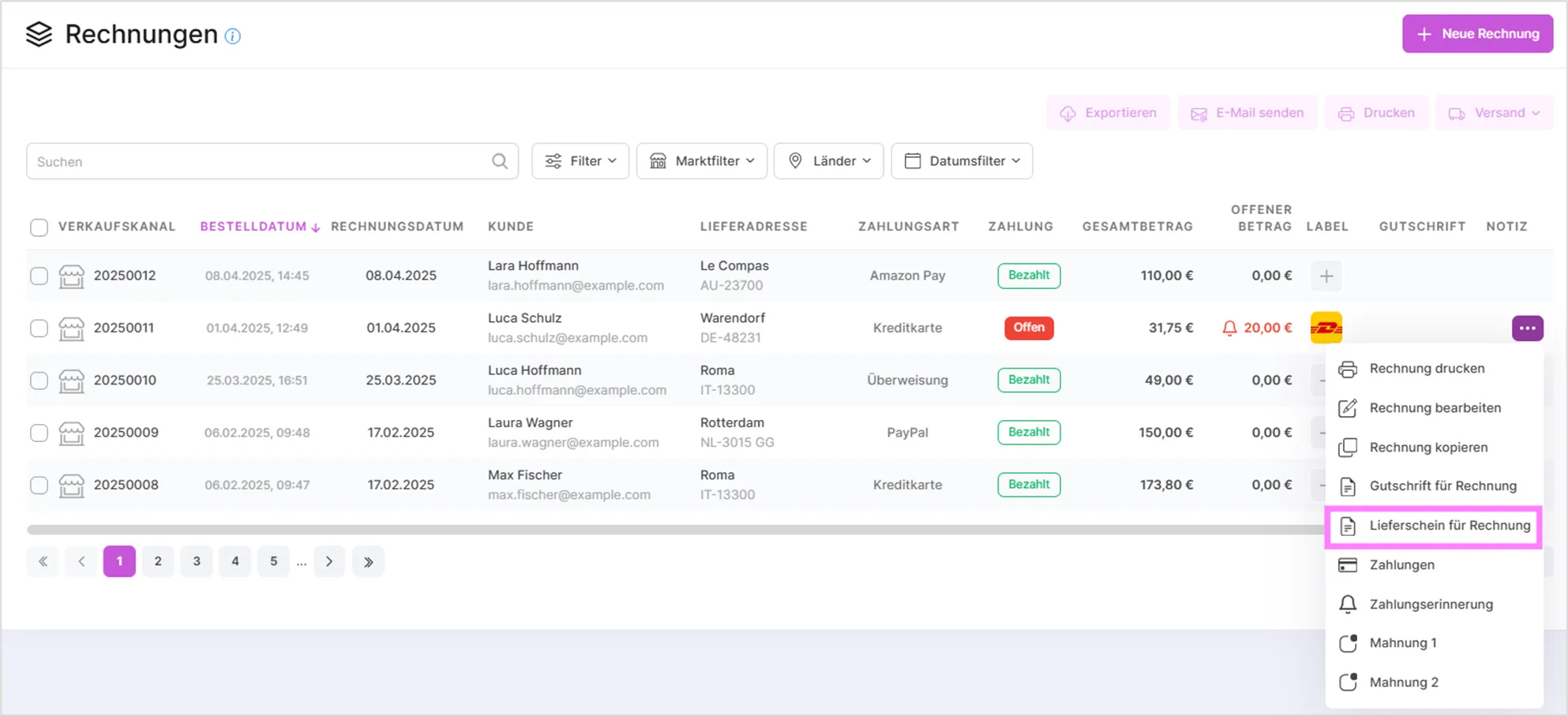
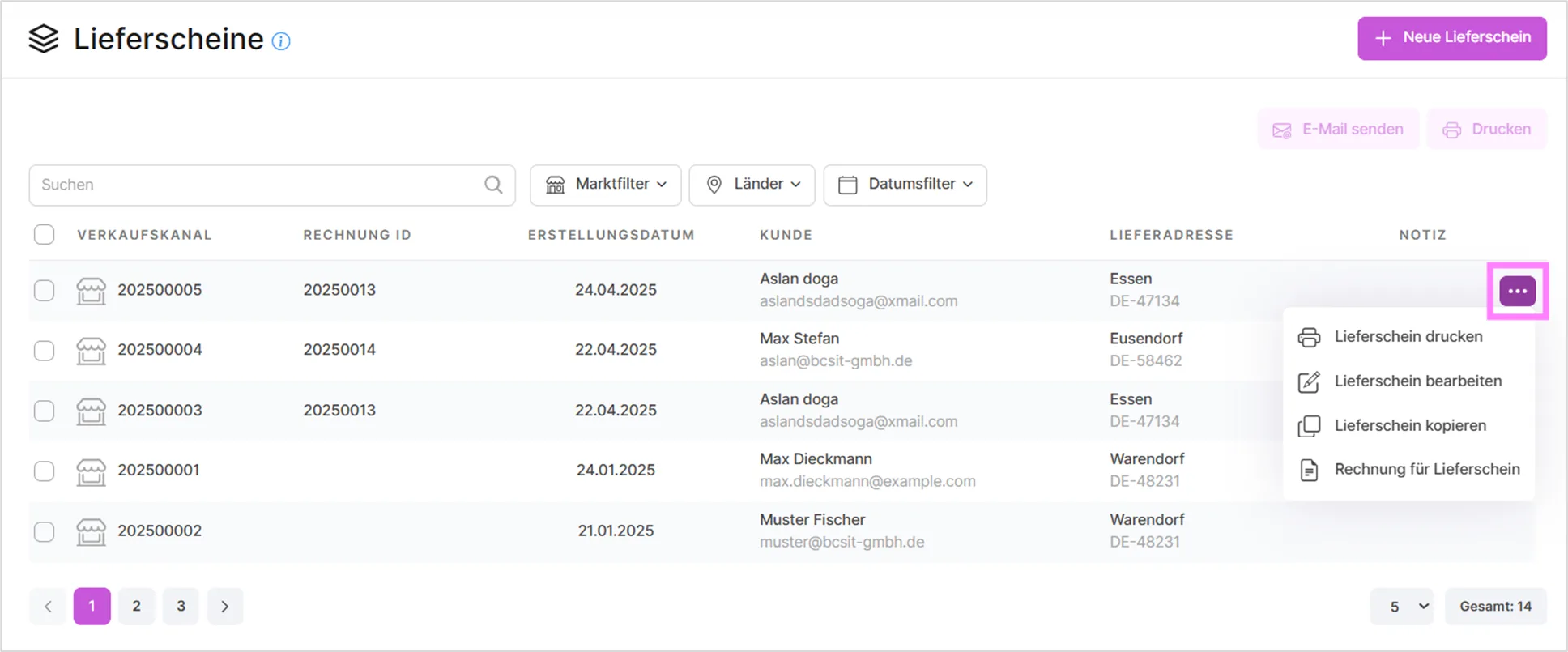
To prevent duplicate documents, a delivery note that was generated from an invoice can't be converted back into an invoice. Instead, SaleVali shows an info dialog linking to the original invoice rather than creating a new one. If the delivery note includes digital products whose license key has already been sent to the customer, a stock-control dialog warns you before any stock quantities are updated.
- By selecting one or more customers from the list, you can send them information about the delivery notes using the 'Send email' function.
- With the 'Print' function you can print selected delivery notes.

With the "New Delivery Note" function you can create new delivery notes for your customers. The procedures in this area are the same as those in the section for creating new orders.
Video Tutorials
Creating and Sending a Delivery Note to the Customer
Was this article helpful?
Thanks for your feedback!