
 Deutsch
 English
 Türkçe
On this page you get an overview of the customers you have created in SaleVali.
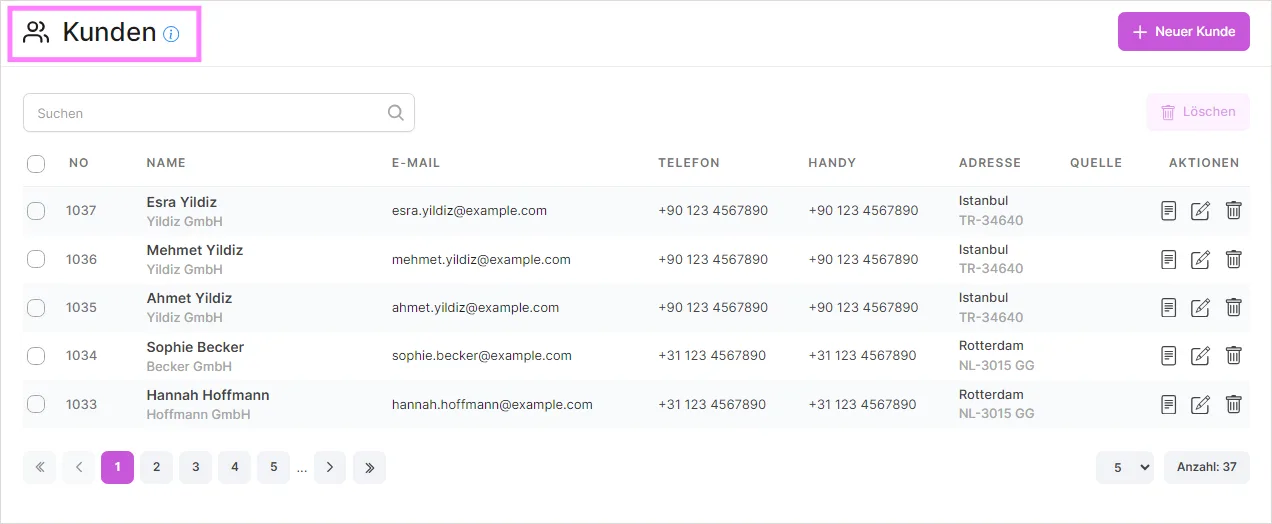
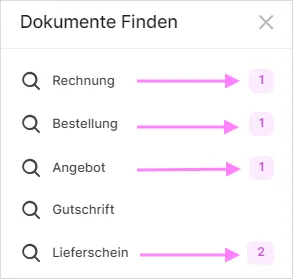
In the actions you can delete or edit customers, and by clicking the 'Documents' button you can view the documents created for the customer and click on the relevant document to see its details.

You can search by ID and name in the search box below. Using the button  you can also delete selected customers in bulk.

Above the list you can narrow the results with the customer type, country, marketplace, and date range filters, in addition to the search box described above.
Customer data can also be exported to a CSV file or imported from one. See Import and Export for details.
Using the New Customer button, you can create customers.

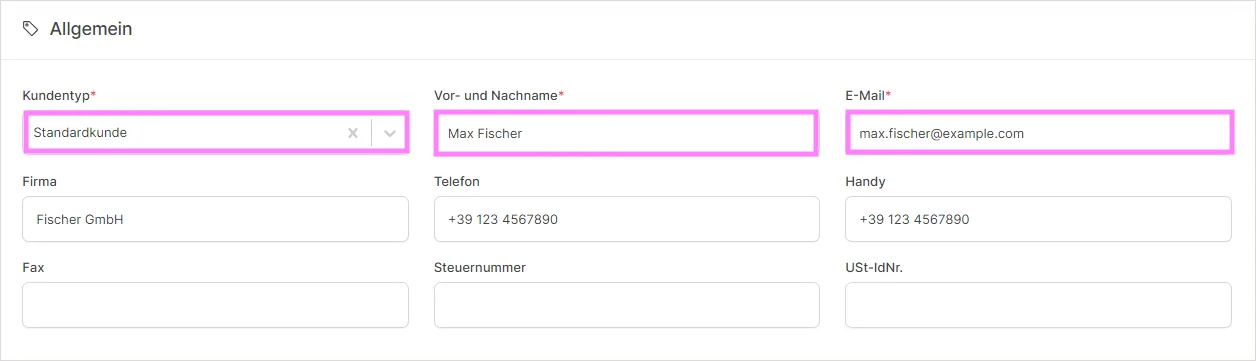
In the General section you first choose a customer type: Standard, Private, Business, or Sole proprietorship. Which fields are required depends on the type you pick: the customer's name is required for every type except Business and Sole proprietorship, while the company field is only required for those two types. This section also holds the customer's VAT ID and tax number, alongside email, phone, mobile, and fax.

The Bank details section lets you store the customer's bank name, IBAN, and BIC for reference.
When adding an address, two different addresses should be added: a billing address and a delivery address. If you add one of the two addresses, the address you added is automatically applied to the other one as well. If you wish, you can change your billing or delivery address in the 'Edit Address' section.

Beyond this initial pair, a customer is not limited to a single billing and delivery address: the address table supports multiple invoice and delivery addresses, so you can add as many as you need with the New Address button. Each address can be marked as the default for its type with a checkmark.
Below the addresses you can manage Contact persons for the customer, for example separate contacts for purchasing, accounting, or support, and you can add as many contacts as needed. For each one you can record a salutation, first name, last name (required), email, phone, and position/department. Turning on Show on documents displays that contact person on orders, offers, invoices, and proforma invoices, and turning on Email contact marks them as the customer's contact for e-mail correspondence.
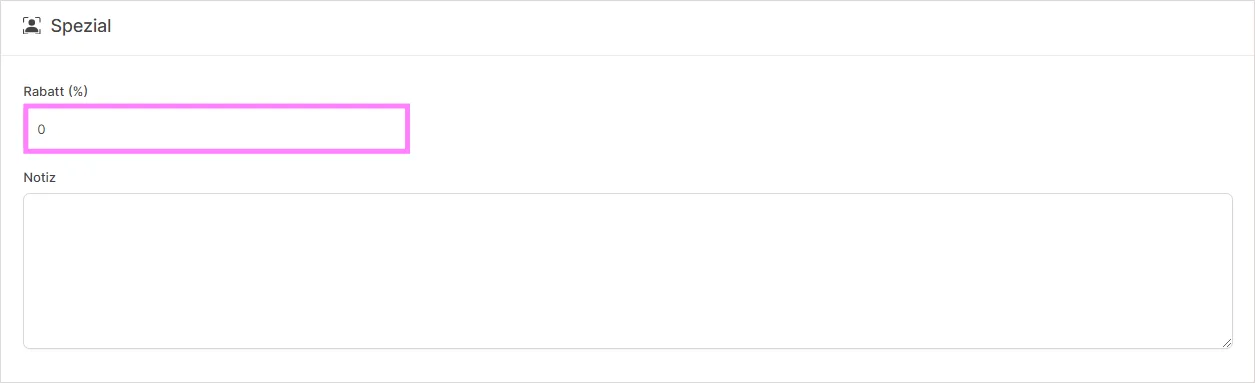
In the section below, you can grant special discounts for each customer.
The notes field holds around 1,000 characters; this is only an informational limit shown as a remaining-character counter, so you can use it freely for internal remarks about the customer.
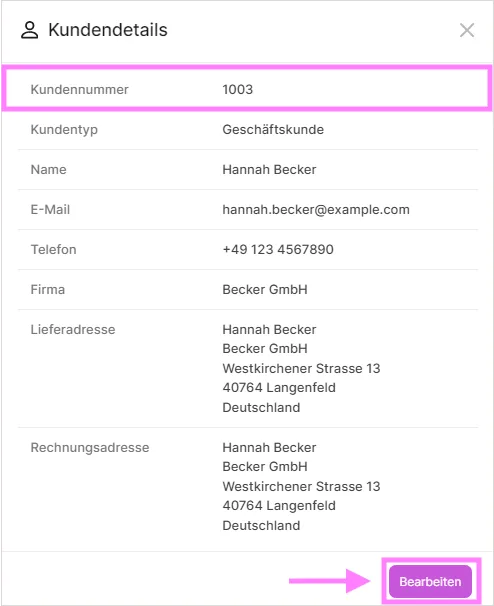
If you click on the customer number, you will see detailed information about your customer.
When you open a customer for full editing, a few more areas become available. The Find Documents summary card shows, per document type (orders, invoices, offers, delivery notes), a count and a total for all documents linked to that customer's email address; clicking a document type opens the matching filtered document list. Further down, an embedded Customer orders table lists all orders placed by the customer directly on the edit page, with its own search box. At the bottom, a change history timeline records who created or last updated the customer record and when, including the individual field changes.
Video Tutorials
SaleVali Customers
Was this article helpful?
Thanks for your feedback!