
 Deutsch
 English
 Türkçe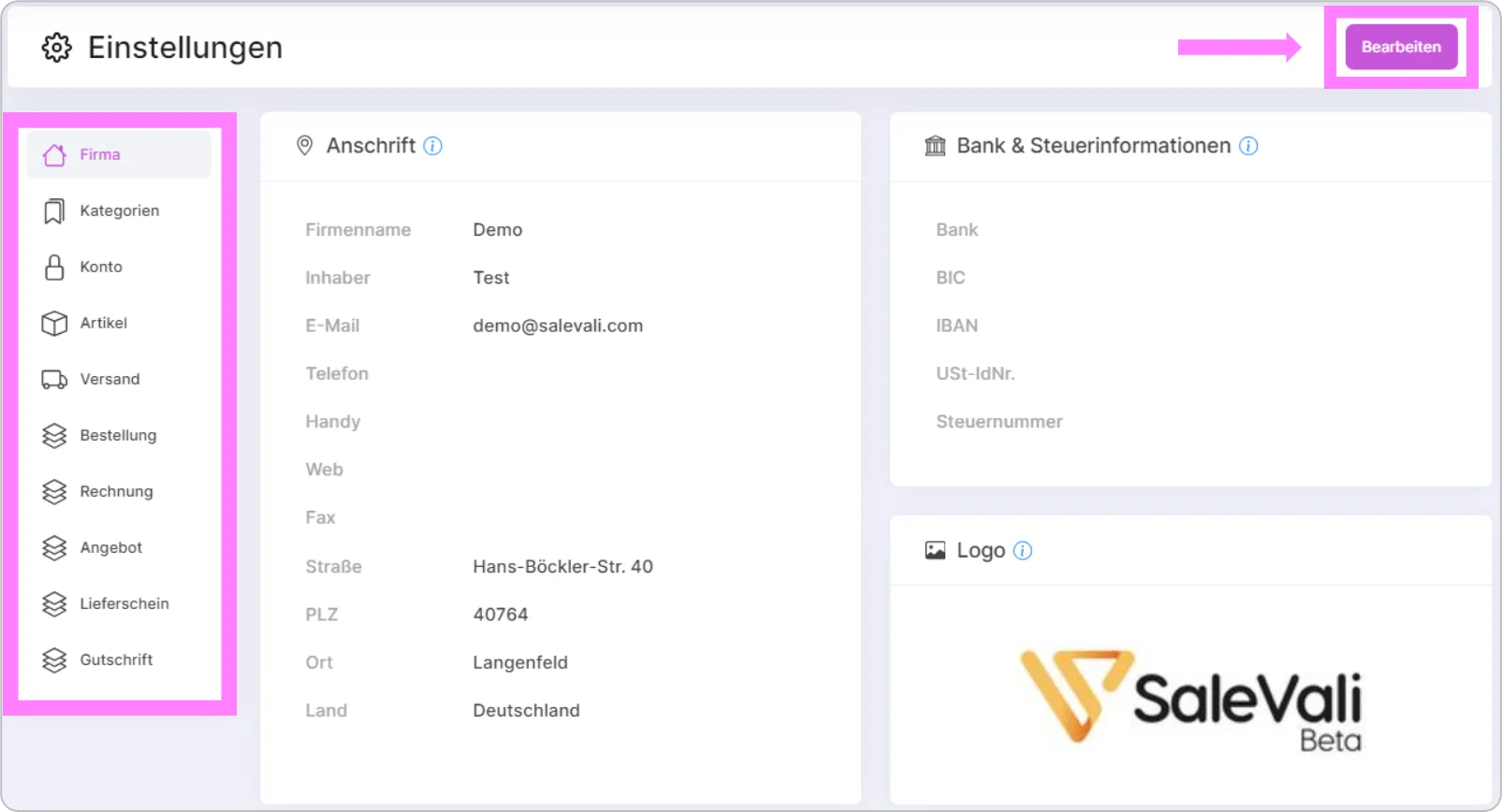
Company
This area shows your company's address details. You can update your information by clicking the 'Edit' button in the top right. Please note that this information will appear on your invoice.
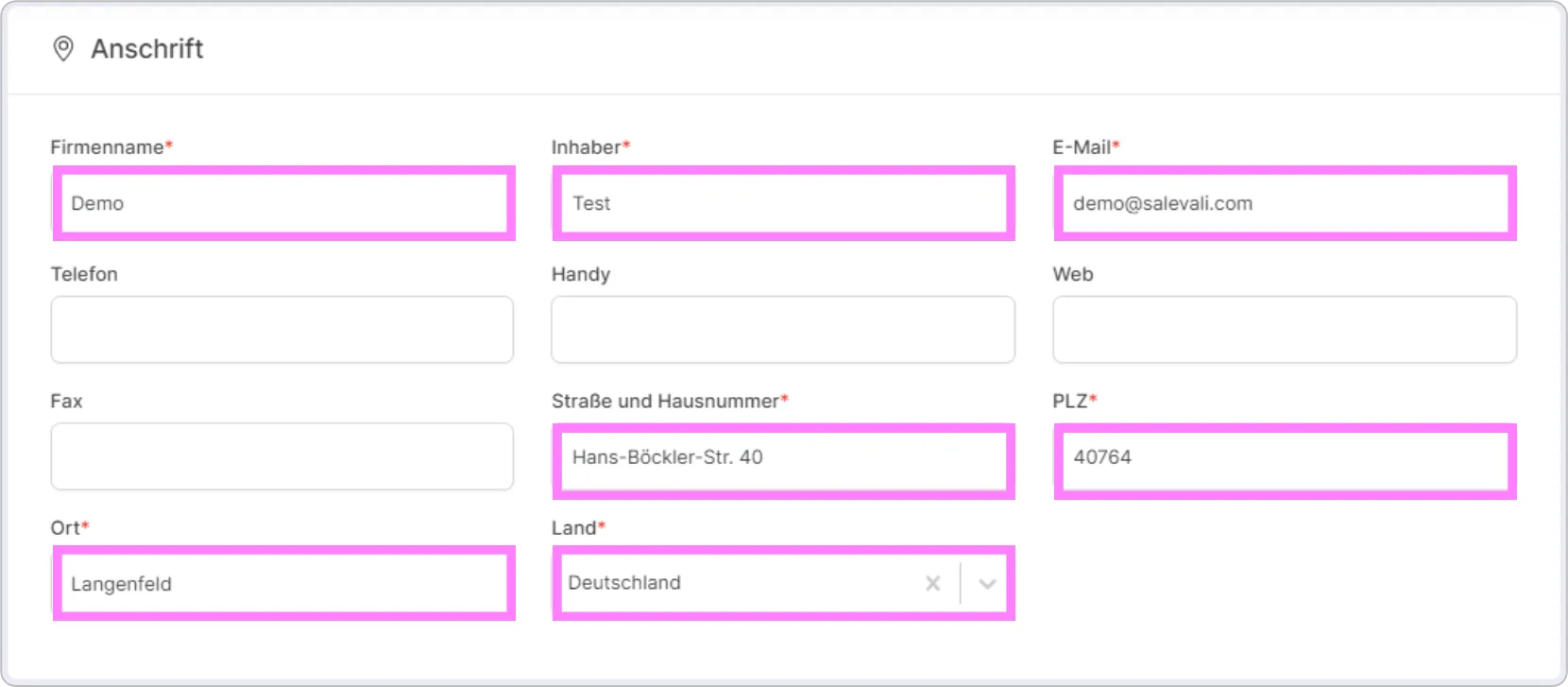
This area shows your company's bank and tax information. You can update your information by clicking the 'Edit' button in the top right. Please note that this information will appear on your invoice.
This area shows your company's logo. You can change your logo by clicking the 'Edit' button in the top right. Please note that this information will appear on your invoice.
Categories
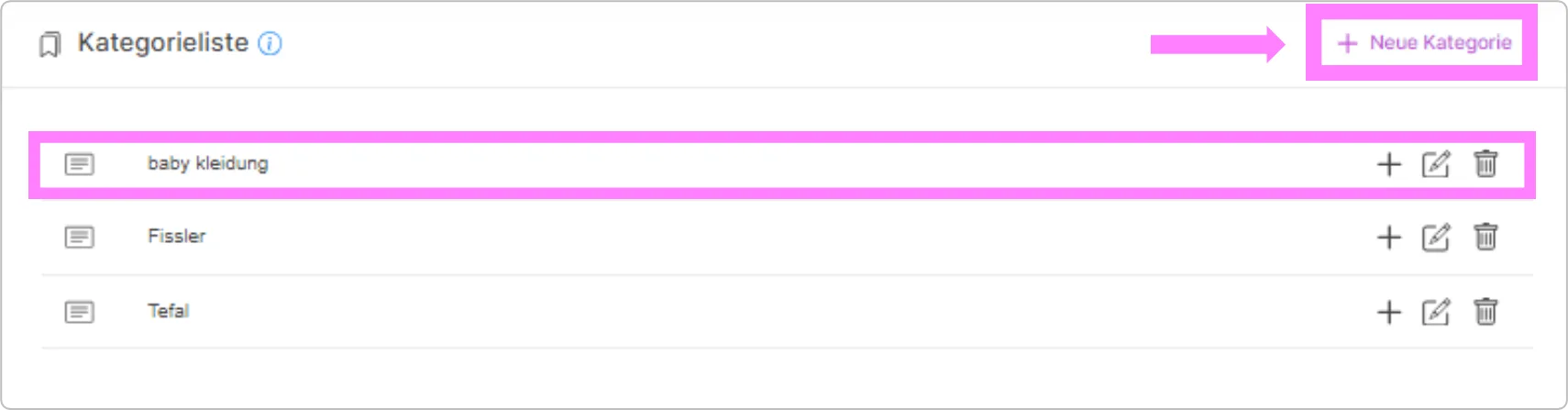
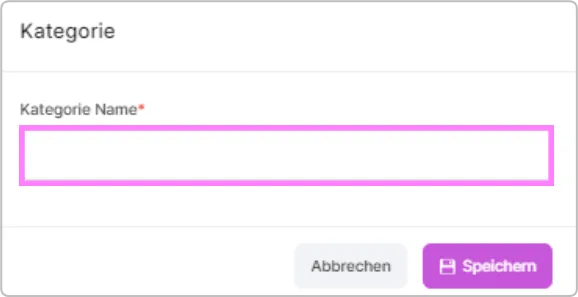
In this section, you have the option to create categories and subcategories for your products. You can add new categories by clicking the 'New Category' button in the top right.In this section, you have the option to create categories and subcategories for your products. You can add new categories by clicking the 'New Category' button in the top right.
Account
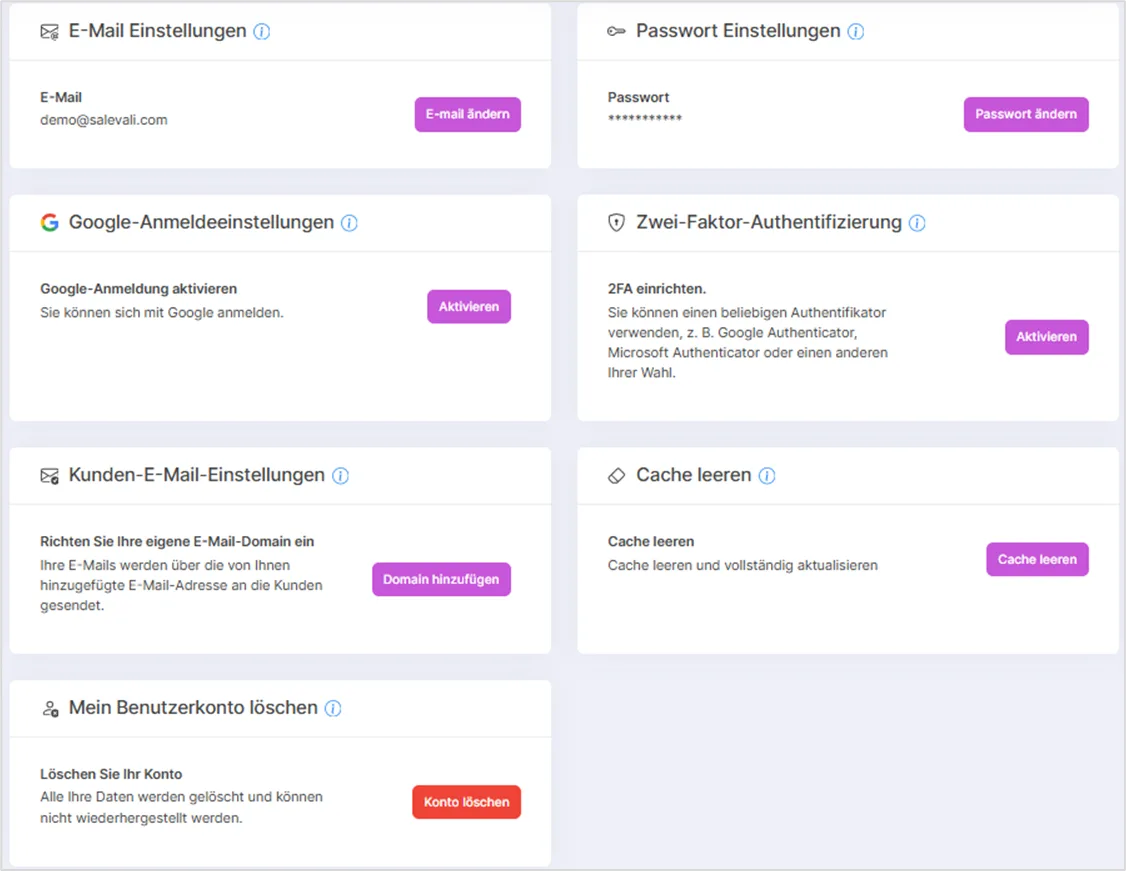
The "Settings" area allows you to manage your user account and the general functionality of the SaleVali application. Here you can adjust important details such as email addresses, passwords, security options, and your account configuration.
Time zone
- Set your company's time zone here. Document dates, invoice number ranges, and tax dates are calculated based on this time zone, regardless of where you access SaleVali from.
Customer email settings
- Connect your own email domain so that emails to your customers are sent from your own address instead of SaleVali's default sender. If the connection is automatically disabled because the mail server rejected your credentials, you can update them here to restore it.
Clear cache
- Clear your browser's cache and refresh the application completely. This will log you out, and you'll need to sign in again afterward.
License status
- Check your current license status here, and confirm your interest in upgrading to Premium if you'd like. When your current period ends, your license will be upgraded automatically.
Cancel account / Revoke cancellation
- Submit a cancellation request for your account. After submitting, your account is only deactivated 30 days later, and you have another 30 days after that to reactivate it before your data is permanently deleted. If a cancellation is already in progress, this same area lets you revoke it and restore full access.
Products
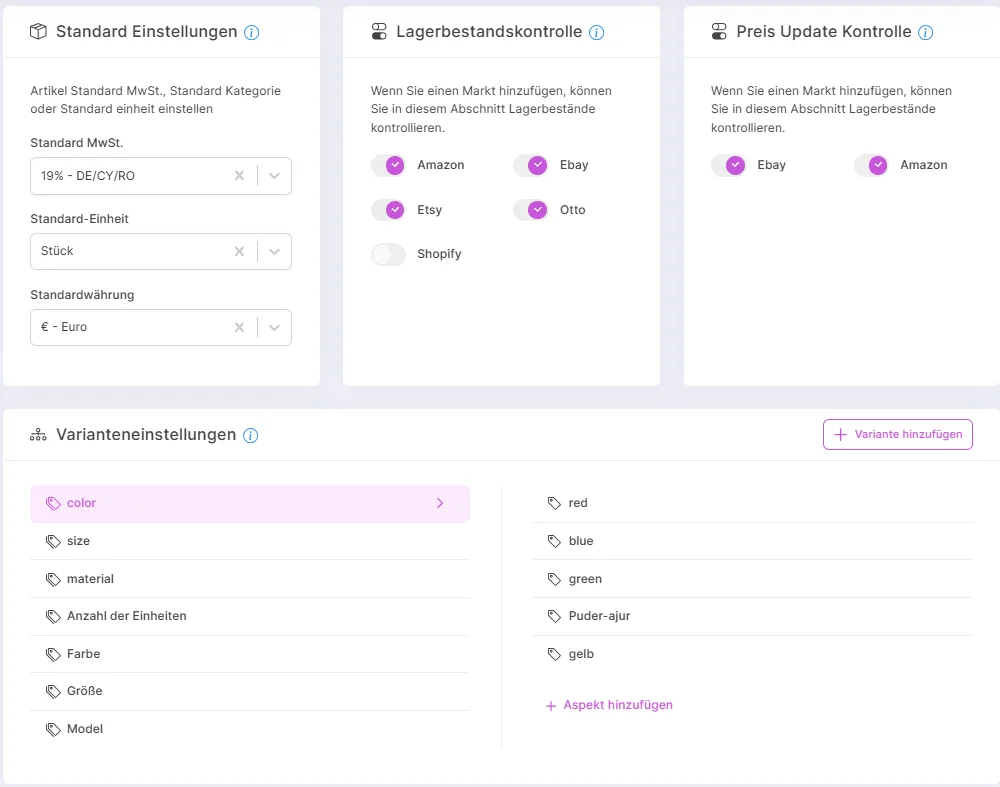
Set default VAT, default category, or default unit for products:
- Allows you to set a default VAT rate, category, and unit for newly created products.
Stock Control
- This area allows you to control how stock levels are synchronized between SaleVali and the connected marketplaces.
Price Update Control
- Similar to stock control, here you can specify for which marketplaces prices should be updated automatically.
Variant Settings
- In this section, you manage the global options and values for product variants.
Shipping
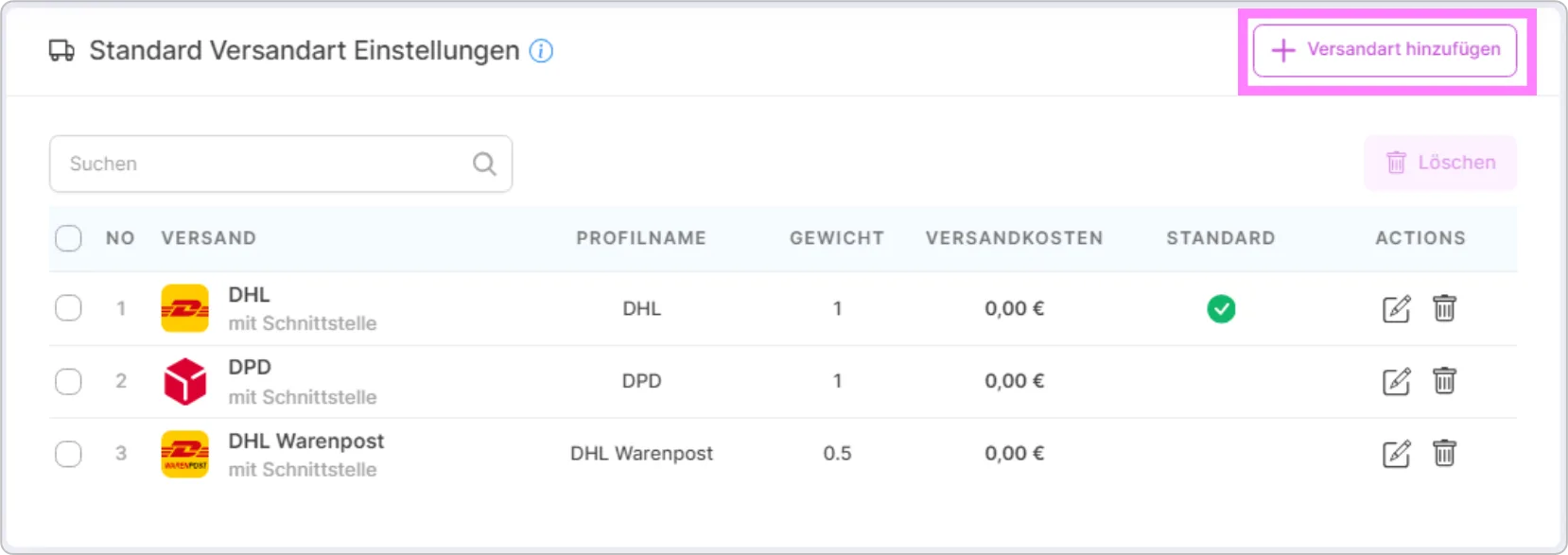
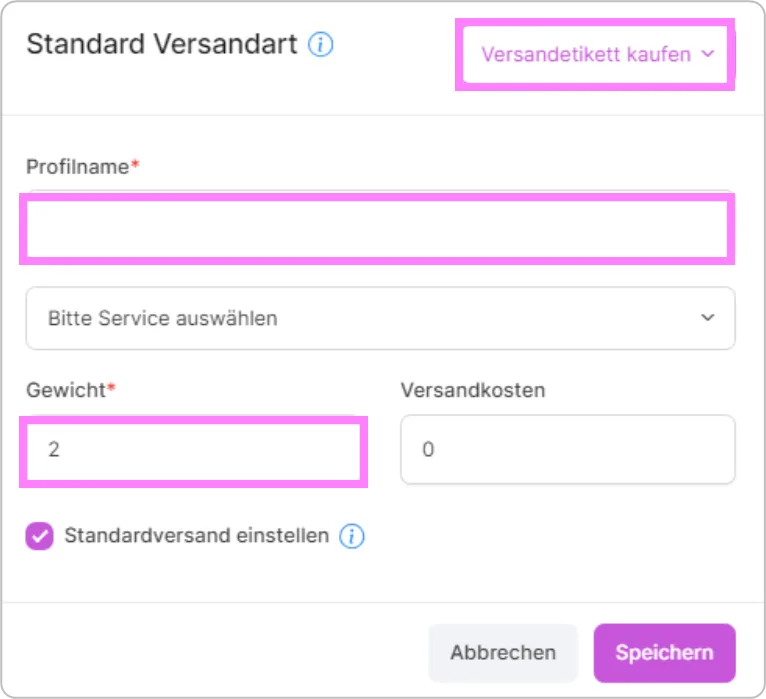
You can add a default shipping method and set it as the default by clicking the "Add Shipping Method" button on the right side of this field. The default shipping method you add will automatically be matched to the shipping provider you selected when creating a label in the Document section.
Order
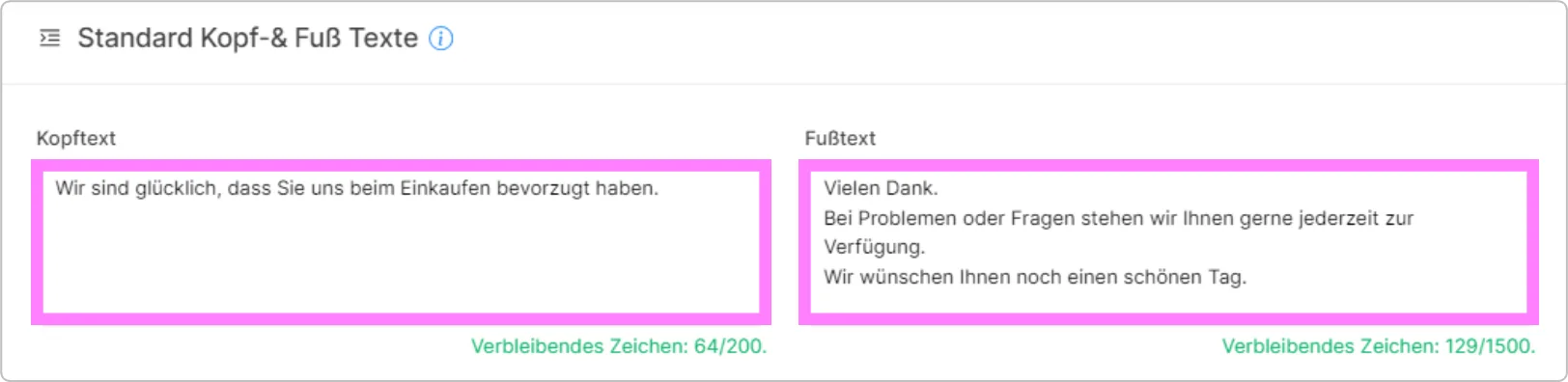
In this section, you can set default header and footer texts that will appear on your documents.
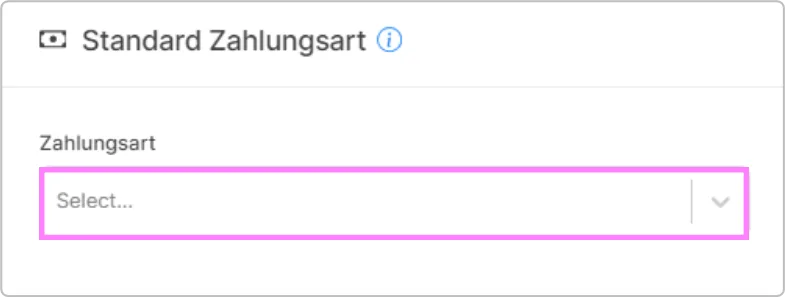
In this area, you can set a default payment method, which will be shown as the default value when creating a document. The 'Default' information entered here will be carried over into the documents you create.
Invoice
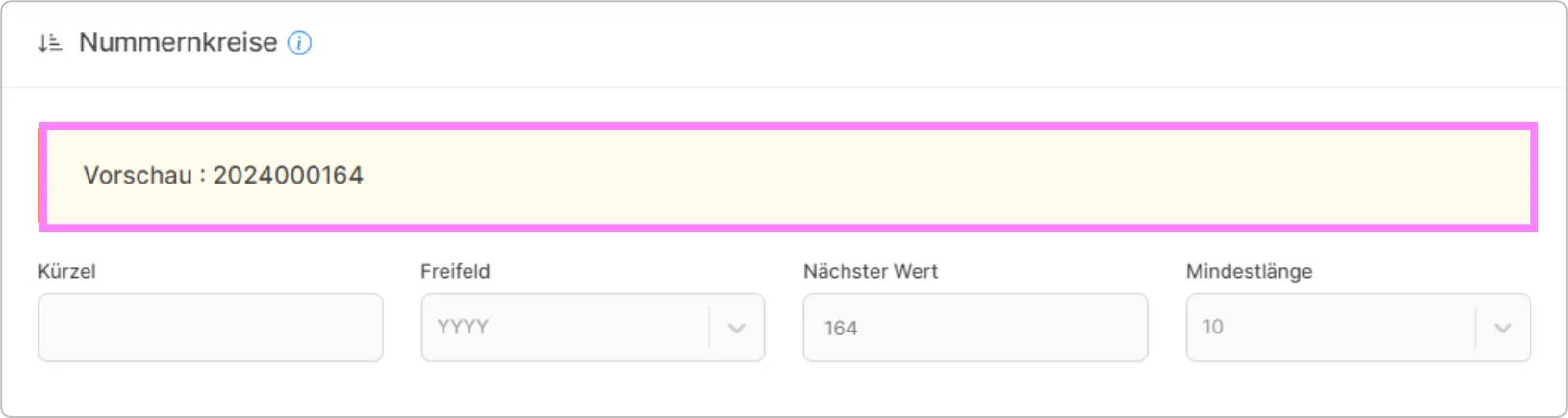
You define the document number via the number range. This must be entered here after creating your SaleVali account. Once a document number sequence has been set, this number range can no longer be changed later. Example number: KE20230001,BCS000001,10001
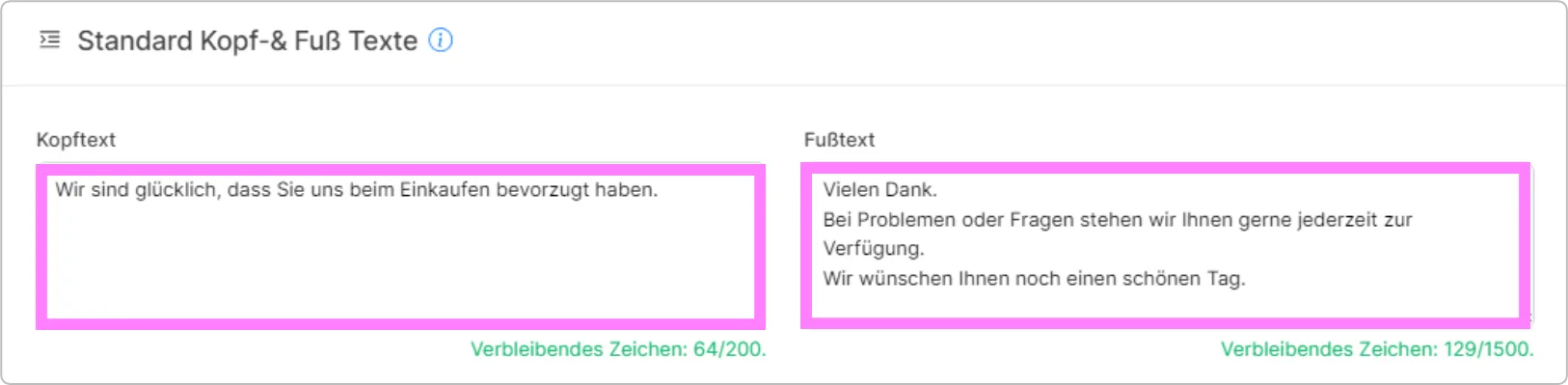
In this section, you can set default header and footer texts that will appear on your documents.
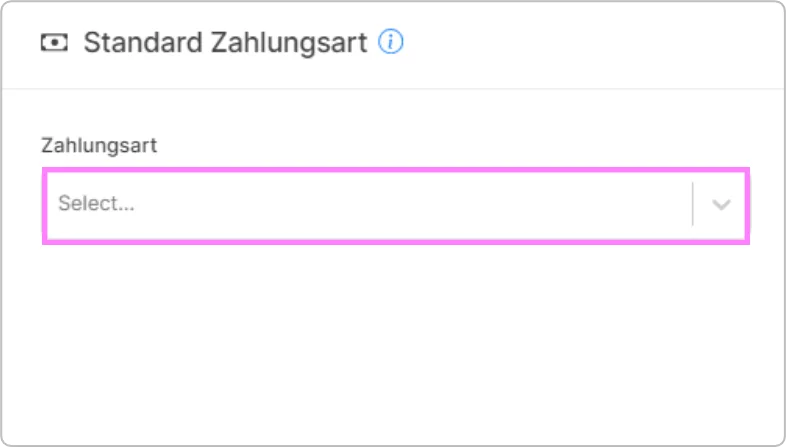
In this area, you can set a default payment method, which will be shown as the default value when creating a document. The 'Default' information entered here will be carried over into the documents you create.
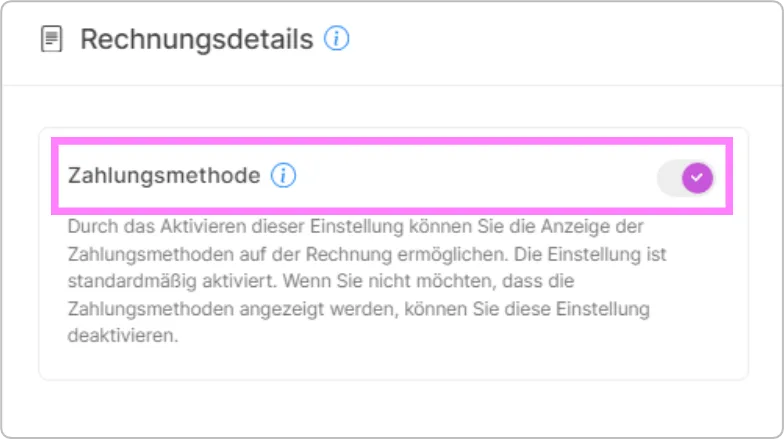
In this field, you can customize the appearance of your invoice.
One Stop Shop (OSS)
- The OSS system lets you report VAT for cross-border B2C sales within the EU from a single point, without registering for VAT separately in every EU country. Below the €10,000 sales threshold, VAT is calculated at your home country's rate; once the threshold is exceeded, the destination country's VAT rate is applied automatically.
Document language
- Set the language your documents (invoice, credit note, quote, delivery note) are issued in. This is independent of the application's interface language. Switching your interface language does not change the language your documents are printed in.
10-year retention
- SaleVali shows the statutory 10-year retention obligation for invoices and accounting documents (under German HGB §257 / AO §147) as an always-on indicator. This isn't a setting you can toggle off, since the retention period is a legal requirement.
Invoice number gap check
- Run a check across your invoice numbers to confirm they are sequential and continuous, as required by German VAT law (UStG §14(4) No. 4) and the GoBD. Any gaps found are listed by year so you can review and resolve them.
Quote
You define the document number via the number range. This must be entered here after creating your SaleVali account. Once a document number sequence has been set, this number range can no longer be changed later. Example number: KE20230001,BCS000001,10001
In this section, you can set default header and footer texts that will appear on your documents.
In this area, you can set a default payment method, which will be shown as the default value when creating a document. The 'Default' information entered here will be carried over into the documents you create.
Delivery Note
You define the document number via the number range. This must be entered here after creating your SaleVali account. Once a document number sequence has been set, this number range can no longer be changed later. Example number: KE20230001,BCS000001,10001
In this section, you can set default header and footer texts that will appear on your documents.
In this area, you can set a default payment method, which will be shown as the default value when creating a document. The 'Default' information entered here will be carried over into the documents you create.
Credit Note
You define the document number via the number range. This must be entered here after creating your SaleVali account. Once a document number sequence has been set, this number range can no longer be changed later. Example number: KE20230001,BCS000001,10001
In this section, you can set default header and footer texts that will appear on your documents.
In this area, you can set a default payment method, which will be shown as the default value when creating a document. The 'Default' information entered here will be carried over into the documents you create.
Digital Products
In this section, you configure how license keys or access information for digital products are delivered to your customers.
Contact email
- Optionally set a separate contact email address for digital product deliveries. If left blank, the email address from your company master data is used instead.
Email template
- Write the email template your customers receive when they purchase a digital product. This template is sent automatically once the order is marked as paid, which is the only delivery trigger.
Detailed invoice (eBay)
- Enable this option to have digital keys sold via eBay displayed in detail on the invoice.
Import / Export
DATEV accounting settings
- Configure the chart of accounts and contra account used for your DATEV export. Account numbers and tax keys are then assigned automatically per tax category, based on this configuration.
- Chart of accounts (SKR): choose the chart of accounts your tax advisor uses for your bookkeeping. The default is SKR03; if you're unsure which one applies to you, check with your accountant.
- Contra account (Debitor): the generic customer account your accountant posts invoice receivables against. If left blank, 10020 is used as a default. Confirm with your accountant that this matches your actual chart of accounts.
Subpages
Was this article helpful?
Thanks for your feedback!